There are a ton of useful Cisco commands that I do not use everyday but I still use often. This post is probably going to be one that gets updated frequently with new commands that I come across that I want to hold on to. So I am apologizing in advance in case this one gets a little messy. The actual Cisco command will be in bold lettering and in quotations.
Display Cisco stateful packet inspection session created becasue a policy map is applied on a specified zone pair - "show policy-map type inspect zone-pair sessions"
To show AnyConnect connected VPN users and their session info - "show vpn-sessiondb anyconnect"
To show that detailed status for active crypto sessions (i.e. VPN) - "show crypto session detail"
To delete a router config enter in the following command and reboot the router with out saving - "delete nvram:startup-config"
Here is how to create a LACP trunk on a Cisco switch:
"interface GigabitEthernet1/0/48
switchport mode trunk
channel-protocol lacp
channel-group 2 mode active"
Cisco 4K routers NAT ACL's can not use a Permit IP any any for the NAT overload statement. It has some issues with it, so you need to be more specific with the networks that it will be NAT'ing. For security reasons you should be specific anyways. By using a Permit IP any any NAT statement it will cause irregular behavior on the router, it very well may work but it also may just stop working.
"ip nat inside source list NAT interface GigabitEthernet0/0/0 overload
IP access-list extended NAT
10 permit ip 10.1.1.0 0.0.0.255 any
20 permit ip 10.1.2.0 0.0.0.255 any"
Thursday, May 16, 2019
ShoreTel: Recording Audio from a Physical ShoreTel Voice Switch Port
You can capture audio output from a ShoreTel Voice Switch physical port using VxWorks commands. The audio output is save the the HQ or DVS server that controls the switch. This is great when you are trying to trouble shoot voice corruption or audio issues
- From the Start menu, navigate to the Control Panel-->Administrative Tools and locate the IIS Manager
- Right click on the IIS Manage and select Properties. Then enable the ability to write to the FTP server by selecting the Write checkbox and clicking OK
- This enables the ability to write to the following director C:/inetpub/ftproot
- You may also need to edit the permission fo the C:/inetpub/ftproot directory and give the users group write access
- At the command prompt on the voice switch you would like to record from enter
- Record2file2 (23, 45, "test") i.e I want to record a call on a T1 on port 23 for 45 seconds and save the file with the name of test.
- The moment you press enter is when the recording will start
- Go the the C:/inetpub/ftproot directory and pull the two files <NAME>rx.pcm and <NAME>tx.pcm to your desktop.
- Using an audio editor (like Audacity or Cooledit) you will be able to listen and analyze the call
- Import the PCM file to Audacity using the following options
- File -> Import -> Raw Data
- Signed 16-bit PCM
- Big-endian
- 1 Channel (Mono)
- Sample Rate 8000 (8k)

Wednesday, May 15, 2019
Cisco: Copy a routers running config to a text file or flash drive
A lot of customers ask how they can pull a back up running configuration of their Cisco router. So here are the steps to do so.
- Open Putty
- On the left side select Logging under Session
- Select the ratio button next to All Session Output
- Press the Browse button and navigate to the location you wish to save the file and enter a file name in the file name field and click Save

- Click on Session
- In the Host name box enter the IP address of the device you want to connect to
- Select Telnet, SSH or Serial ratio button under the Connection type
- Click Open

- If you are using SSH and this is the first time you are connecting to this device on this computer you maybe asked to save the RSA key. Click Yes
- Enter your log in info to log into the router
- Depending on your privilege level you may need to type in Enable to get into enable mode
- Type Show run and press enter
- Some of the configuration will be shown, press the Space bar to show more

- Once all the configuration has been displayed type Exit and press enter
- The Putty session should close
- Browse to the location where you saved your file and change the extension to .txt
- Open the file and verify that you see the device configuration.


To copy config to a flash drive
- Insert flash drive into the router
- At an enable prompt (shown by a # instead of a >)
- enter the following command copy running-config usb0:running-config
- remove the flash drive and close the putty session
Cisco: How to install Cisco AnyConnect
Here are some instructions on how to download and install the Cisco AnyConnect client to a PC.
- Open a web browser and go to the IP address or URL for your VPN and make sure you use https to access it (i.e. https://vpn.anycompany.com)
- If the ASA is using a self-signed certificate you will see a page that says this site is not secure. This is OK, just click on the Details link if your are using Edge or IE and if you are using Chrome click the advance button

- Then click on the Go on to the webpage link if you are using Edge or IE and if you are using Chrome click on Proceed to

- Select the correct group you belong to from the drop down (if there is one)
- Enter the Username and Password that you should use to connect to the VPN
- Click Login

- Click the blue download bar for your OS version

- Click on the Details link if your are using Edge or IE and if you are using chrome click the advance button

- Click on the Go on to the webpage link if you are using Edge or IE and if you are using Chrome click on Proceed to

- A download box will appear at the bottom of your screen and you can run the file or save it to your computer. I usually tell end users just to run it, so click Run

- When prompted, install the AnyConnect Application


- Start the Cisco AnyConnect client
- Start=>All Programs=>Cisco=>Cisco AnyConnect Secure Mobile Client=>Cisco AnyConnect Secure Mobile Client
- The AnyConnect connection box will appear

- If on step 1 when you entered the URL in the web browser you saw that this is not a secure site please skip the section labeled Untrusted Servers
- In the AnyConnect connection box enter in the IP address or URL that you typed into your browser in step one and Click Connect
- If you skipped down to the Untrusted server section you will see a security warning box once you click Connect that says this is an Untrusted server Click Connect Anyway

- A box will appear; select the group that you belong to from the drop down if there is one
- Enter in your username and password and click OK

- When it is finished, you will see a box in the bottom right corner of your screen saying Connected
- You can now close the web page as you have installed the AnyConnect VPN client and you are connected to the VPN
- To disconnect from the VPN, right click on the AnyConnect icon that is in your system tray and choose VPN disconnect


Untrusted servers
- Click the Gear in the bottom left corner
- Click on the Preferences tab
- Uncheck Block connections to untrusted servers

- Click the X in the top right corner to close the window
- Go back to step 15

Tuesday, May 14, 2019
Cisco: Right to use Licensing
Cisco Right to use licensing allows you activate a specific license type and level for cretin types of equipment. A lot of times when we order a Cisco AppX or SecK9 license for a router or do a RMA on a piece of equipment I do not always need to activate a license and just configure the license as Right to use. Here are some of the commands to configure a right to use license
Conf t
License accept end user agreement
Yes
License boot level <License_Level> (Enter in the license name, appx, securityk9, ect)
Write memory
License right-to-use move <License_Level>
Other useful licenses commands:
To see a list of licenses and to see what is currently in use you can use the "Show License" command
To disable the license from a device you can use the "No license feature <License_Level>" command
Conf t
License accept end user agreement
Yes
License boot level <License_Level> (Enter in the license name, appx, securityk9, ect)
Write memory
License right-to-use move <License_Level>
Other useful licenses commands:
To see a list of licenses and to see what is currently in use you can use the "Show License" command
To disable the license from a device you can use the "No license feature <License_Level>" command
Polycom: Locate a Polycom phone's IP address (5000, 6000, 7000)
I work with Polycom phones on a regular basis but not regular enough to always remember how to find the IP address of the phone from the display. So here are the steps to find it.

- From the Home/Menu, select Settings
- Select Status
- Select Network
- Select TCP/IP Parameters

ShoreTel: Configure Valcom PagePro VIP-201A with ShoreTel
So there is no documentation from ShoreTel that says the Valcom PagePro IP VIP-201A is supported. But I was able to get it to work by playing around with the settings. The VIP-201A is really just acting as a SIP extension. Now I do not have the exact steps to do this as I kinda lost track of them when I was working on this but here is a general outline of what I did.
- Install the VIP-102B setup tool to access the device
- You must first scan and find the device (You should probably be on the same network as the device)
- Statically assign an IP address to the device
- Reboot the device
- Go to System -> Audio groups
- Create the Audio Group you need and click OK
- Go To System -> Audio Group Membership
- Select the Audio Group in the Drop down that you want to use, Select what port it should be available to
- Click Close
- Go to the Channels tab
- Select 1 through 4 and put in the dial code you want to use for it (leave the rest default)
- Go to the SIP tab
- Select you paging zones and fill out the info
- Phone number - After you dial the ShoreTel SIP extension to access the Valcom box, you will hear a tone in the handset, Then dial this "Phone number" to select the paging zone you want to access.
- Description
- Authentication Name: Used for authentication with the ShoreTel SIP extension, you should use the ShoreTel extension Clientname
- Secret: This is the SIP password on the SIP extension you are trying to use
- SIP Server: Enter in the IP address of the ShoreTel switch that hosts the SIP proxy (this is not the ShoreWare Director Server)
- Pre-Announce Tone: use this to know when to press the code for the paging zone
- Audio Groups: Select the Audio Groups you want this dial code to access for paging
- Configure each SIP tab as you need to, the authentication will be the same for each one
- To save this config, go to File --> Save (This will save it to your PC)
- Reboot the device
- Check ShoreTel ShoreWare Director Telephones to see if the Valcom device is registered
Hopeful this will help you in your configuration!
Monday, March 18, 2019
ShoreTel: Mobility Trusted Admin APP Set-up
Here are the steps to create the certificates that are used between Mobility and Connect.
- Run cd “C:\Program Files (x86)\Shoreline Communications\ShoreWare Director\App\bin” pki.bat -S SMRAdminApp in a Command Prompt window
- To generate the certificate for the SMR they are located in the Shoreline Data\keystore\certs directory and copy the contents of the following cert and key files
- SMRAdminApp.crt - located in cert folder within the above root directory
- SMRAdminApp.key - located in private key folder within above root directory
- Complete the following steps to set up trusted server applications for the SMR
- Log in to Mitel Connect Director and navigate to System > Security >Trusted Server Application
- Click New, and complete the following steps to create a new trusted server application for the
- Mobility 9.0 SMR
- Specify the Trusted account name. This should be a descriptive name that conveys the location and use of the SMR. This information is for reference only
- Browse to Shoreline Data\keystore\certs, and select the SMRAdminApp file
- Select Client Application Service in Application Type, and select Enabled
- In Property Type, select admin-cas in Available, and then click to move it to Selected
- Click Save
- Navigate to Configuration > System > Authentication > Directory, and complete the following steps to configure the trusted application settings
- Click Add
- Select Mitel Directory in Server Type
- Specify a Name
- Click Apply
- Specify the headquarters FQDN or IP address in Server Address
- Select Trusted Admin App, and then click the Manage App Certificate link to launch the Directory Server Certificate page
- Click Import, and paste the contents of the cert and key files you copied in step 1 of this section
- Click Import again, and then cancel the prompt to reboot
- Select tls in Security type
- Click Apply, and then click Verify
- Sync Authenticator Keys on the SMR
- Open a browser and navigate to the SMR configuration page with administrator permissions
- Navigate to Configuration > System > Authentication > Directory, and select the directory you defined in Configure Trusted Application Settings on the SMR on page 21
- Click Sync ABC Keys to sync the authenticator public keys with the headquarters PBX. Mitel recommends you use the Query option to search for a known Mitel directory user name to verify that you can successfully access the Mitel directory
- Specify the Authorization Directory Servers
- Open a browser and navigate to the SMR configuration page with administrator permissions
- Navigate to the Configuration > Groups and Users page
- Select the appropriate group, and then select the appropriate directory type and directory in External User Authentication/Authorization
- Click Next. Complete configuration as necessary, and then click Apply
ShoreTel: Installing Connect on Server 2016
I have run into a few issues when installing ShoreTel Connect on Server 2016, and the main one is you run into a issue where while installing Connect you get a popup that says "A digitally signed driver is required" and the install fails. This is usually because driver signing and secure boot is enabled. So here is the check list I use when I install Connect on Server 2016.
- Prep the new server as per the Build Notes and Install Guide (Check with TacTools Powershell script)
- Disable secure boot (BIOS)
- Disable Digital driver signing enforcement run ->gpedit.msc User configuration->Administrative Templates->System->Driver Installation->Code signing for drivers set to disable
- From Admin CMD run the following command bcdedit.exe -set loadoptions DDISABLE_INTEGRITY_CHECKS
- Change DEP to essential windows applications
- Disable UAC
- HKEY_LOCAL_MACHINE\SOFTWARE\Microsoft\Windows\CurrentVersion\Policies\System EnableUA set to 0
- Disable Windows firewall
- Set Quality Audio experience service to automatic start
- Set Simple mail transfer service to automatic start
- Check to make sure NO group policies are applied
- Check to make sure NO antivirus is installed (disable Defender)
- Disable automatic Windows updates
- Run ShoreTel compatibility checker
ShoreTel: Order to paste in Certificate keys for ShoreTel Mobility
When importing Certificates into a ShoreTel Mobility router, this is the order you use to paste in the keys, while making sure you do not have any spaces between them and you include the start here and end here line part of the keys.
Paste in Public key, then the Private key, then the Bundle key.
Paste in Public key, then the Private key, then the Bundle key.
ShoreTel: SIP profile parameters and their usage
DontFwdRefer Usage: DontFwdRefer=[0|1]
When this parameter is set to 1, it inhibits the use of REFER
for transfer on the trunk. It also inhibits sending INVITE with Replaces
header. Peer must support INVITE without SDP for certain transfer call-
flows
SendMacIn911CallSetup Usage:
SendMacIn911CallSetup=[0|1]
This parameter is used in conjunction with SIP based emergency
gateways, such as those provided by 911 Enable. It appends the MAC
address of the IP phone in the From tag of an outgoing emergency call.
From: "Dizzy Gillespie" <sip:+14085551111@10.1.3.55:5060;user=phone>;tag=shorUA_1077733456- 103455277-EPID-001049042E4A
From: "Dizzy Gillespie" <sip:+14085551111@10.1.3.55:5060;user=phone>;tag=shorUA_1077733456- 103455277-EPID-001049042E4A
This only applies to ShoreTel IP Phones, excluding the IP-8000
conference room phone
StripVideoCodec Usage:
StripVideoCodec=[0|1]
This parameter should be set to 1 if the trunk does not support
video properly. When set to 1, it strips video codecs from SDP in
INVITE’s being sent to the trunk and properly restores and rejects the video
media lines in the 200 response from the trunk. It also strips video
codecs from INVITE’s coming from the trunk and properly restores and rejects
the video media lines in the 200 response to the trunk
AddG729AnnexB_NO Usage: AddG729AnnexB_NO=[0|1]
This parameter should be set to 1 if the trunk does not support
G729 Annex B properly. When this is set, any outgoing INVITE with G729 in
the SDP will have the attribute "a=fmtp:18 annexb=no" added to the
SDP.
HistoryInfo Usage: HistoryInfo=[none|diversion|history]
This parameter controls how information is presented when an
external incoming call is forwarded out this trunk. In this case, the
"From" header will indicate the actual caller, which may not be a
valid number to present to the trunk. The Diversion or History-Info
header will be used to indicate the DID number of the user on who’s behalf the
call was forwarded.
If set to 'none' or omitted, then no indication of the
forwarding number is presented. If set to 'diversion', the SIP Diversion
header is supplied, as dictated by RFC 5806. If set to 'history', the SIP
History-Info header is supplied, as dictated by RFC 4244.
EnableP-AssertedIdentity Usage:
EnableP-AssertedIdentity=[0|1]
This profile parameter controls how Caller-ID is presented on
outbound calls. If it is set to 0 or not pre- sent, then the old style or
presenting caller-ID in From header is used when sending outgoing calls.
Note that the style of presenting blocked caller-ID has changed in ShoreTel
12.
When set to 1, the Caller-ID is placed in the
P-Asserted-Identity header. If privacy is indicated for the call (User
dials *67, or trunk group is configured to not send Caller-ID), then a Privacy
header is inserted with value “id”, and the From header is anonymous
Port Usage: Port=[5060|1-65535]
This profile parameter changes the remote port used for the SIP
trunk. Currently, there is no way to con- figure the port number for SIP
trunks in ShoreWare Director. Only port 5060 is supported. This
profile parameter allows the port number for a trunk group to be configured
HairPin Usage: HairPin=[0|1]
This profile parameter controls if hairpin is allowed on SIP
trunk calls, when enabled and available, features like Barge-in, silent
monitoring, whisper-page, whisper-coach, call-record will be supported on the
SIP trunks.
OptionsPing Usage: OptionsPing=[0|1]
This profile parameter controls if OPTIONS message should be
sent to remote party for detecting connectivity
OptionsPeriod Usage: OptionsPeriod=[180|60-3600]
This profile parameter is used to control the time interval
between SIP OPTIONS messages
OverWriteFromUser Usage:
OverWriteFromUser=[none|UserID|BTN]
This profile parameter is used to choose either user’s id or
billing phone number in the FROM header when making calls
DontAdvertiseUpdate Usage:
DontAdvertiseUpdate=[0|1]
This profile parameter is used to decide if UPDATE should be
sent in the SUPPORTED header
RFC2543Hold Usage: RFC2543Hold=[0|1]
This profile parameter is used to decide if connection field
should be set to 0.0.0.0 in case of sending out- going INVITE for hold
AlwaysSend180 Usage: alwaysSend180=[0|1]
This profile parameter is used to decide if a 180 will be sent
out right away after receiving an incoming INVITE
IgnoreEarlyMedia Usage:
IgnoreEarlyMedia=[0|1]
This profile parameter is used to decide if early media should
be forwarded to the caller, when a SIP de- vice doesn’t wish to accept early
media, this parameter should be set to be 1
Register Usage: Register=[0|1]
This profile parameter is used to decide if outgoing REGISTER
messages should be sent
RegisterUser Usage:
RegisterUser=[BTN|UserID|DID]
This profile parameter is used to decide in what to use in FROM
header in the outgoing REGISTER messages
RegisterExpiration Usage:
RegisterExpiration=[3600|60-86400]
This profile parameter is used to decide the time interval
between outgoing REGISTER messages
1CodecAnswer Usage: 1CodecAnswer=[0|1]
This profile parameter is used to decide if the SDP should
contain only 1 codec for an outgoing answer.
SIP Extension Profile Parameters:
1CodecAnswer Usage: 1CodecAnswer=[0|1]
Some devices do not honor the codec order specified in a 200 OK
response to an INVITE. This causes several problems. First, some endpoints
in the system do not support asymmetric codecs during a session. Second,
any bandwidth calculations based on observing the offer/answer exchange will
likely be wrong. When set to 1, only 1 audio codec is sent in a 200 OK
response.
AddGracePeriod Usage:
AddGracePeriod=[0-1800]
Some SIP devices re-register too close to the expiration time,
introducing a race condition where the sys- tem is in the process of deleting
the record from the system when the re-register is received. This
parameter adds a grace period to the expiration received in the REGISTER
request.
AllowedCodecs Usage:
AllowedCodecs=[any|[codec[,codec]*]
Valid values are ‘any’ (default) or a comma separated list of
codec names. The codec name must be for- matted as shown on the Supported
Codecs page (Administration, Call Control, Supported Codecs). For
example: 'PCMU/8000'. This should be used if the SIP device cannot follow
the normal rules of codec negotiation for all codecs supported in the
installation. For example, one particular implementation would rejected
requests containing some codecs it didn’t understand.
This only applies to audio codecs. Video codecs and RFC 2833 'telephony-event' is not affected by this parameter.
This only applies to audio codecs. Video codecs and RFC 2833 'telephony-event' is not affected by this parameter.
DelayUnregister Usage:
DelayUnregister=[0-20]
Some devices, under certain circumstances, un-register, then
immediately register again. This introduces a race condition similar to
the one discussed in section 0. Usage of this parameter mitigates this
problem.
FakeDeclineAsRedirect Usage: FakeDeclineAsRedirect=[0|1|400-606]
Some SIP devices present an option to decline a call. When
invoked, various different response codes have been used by various
implementations. If set to 0, only a 3xx class response will cause the
call to be diverted to the busy destination. If set to 1, 603 will be
sent to busy destination as well. If set to a value from 400 to 606, the
selected response code will be used to send the call to the busy destination.
MWI Usage: MWI=[none|subscribe|notify]
This parameter defines how RFC 3842 Message Waiting Indication
is handled. When set to "subscribe", an explicit subscription
is required. If set to "notify", the NOTIFY messages are sent
without requiring a SUBSCRIBE. If set to "none", then MWI is
not supported.
OptionsPing Usage: OptionsPing=[0|1]
ShoreGear switches can send a periodic OPTIONS message to SIP
devices, and mark them Out-Of- Service if they don’t respond. There are 2
benefits to this: Calls are diverted immediately to the busy destination, and
there is logging of the event on the server.
The OPTIONS ping occurs periodically between 3 and 4.5 minutes.
The OPTIONS ping occurs periodically between 3 and 4.5 minutes.
OptionsResponse Usage:
OptionsResponse=[200-699]
Some devices reject OPTIONS requests, such as with a 405
"Not Supported" response. This can still be used to determine
if the device is alive and on the network by using this parameter.
Otherwise, a 405 response would put the device Out-Of-Service.
SendEarlyMedia Usage:
SendEarlyMedia=[0|1]
When set to 1, the device will be sent 183 response with SDP for
certain call-flows. Currently, this is only used in error conditions when
an announcement is played.
StripVideoCodec Usage:
StripVideoCodec=[0|1]
This parameter should be set to 1 if the device does not support
video properly. When set to 1, it strips video codecs from SDP in
INVITE’s being sent to the device and properly restores and rejects the video
media lines in the 200 response from the device. It also strips video
codecs from INVITE’s coming from the device and properly restores and rejects the
video media lines in the 200 response to the device.
XferFailureNotSupported Usage:
XferFailureNotSupported=[0|1]
For scalability reasons, there are a few call-flows that use
REFER as a means for the caller to hear ringback tone. These call-flows
rely on the device’s capability to recover from a transfer failure and keep the
original call alive. If the device cannot do this, then this parameter
should be set to 1, and an alternative means of providing ringback is used.
ShoreTel: TMSNCC log break down and explanation
Here is some info I found on ShoreTels website a while go that breaks down the TMSNCC log file and how to read it. I am putting here so that I can have easy access to it when I am out in the field and i see something that I don't recognize and i need some reference. There is a lot of data in this log that can give you info as to what is happening on a call. I am not covering all of it just part of it as there is just too much info to cover. Again most of this info was taken from a ShoreTel document that I got on their website.
Parameters:
C-CE: Call Create Event- To initiate a call
L-CE: Leg Create Event- Follows a C-CE for every call setup. For internal transfers (blind transfers) C-CE: may be skipped
L-IE: Leg Info Event- Follows a C-CE, L-CE typically. Leg Info provides information on the other parties in the call (peer as well as controller)
C-SE: Call State Event- When call is in progress updates either parties on the state of the call (RingBack, Offering, Established etc)
L-SE: Leg State Event- Typically follows a C-SE to inform the leg state changes
L-DE: Leg Destroy Event- When call is teared down leg is destroyed
C-DE: Call Destroy Event- Call destroyed after user/system hang up
G-MST: Media State Event- For the terminated leg in a call. Every RTP stream (every leg) has media stats
40000001 = Trunk call leg to PSTN
20000023 = Internal call leg
00020000-1aae-4f05-9cce-0010491e1b95 = Call GUID (different for every call)
ncc_media_ctl = PBX system responding to the caller
Example of a Call:
1555-555-5555 Calls in ---> Hunt Group Ext 2110 ---> HG Forward Always ---> Voicemail ---> User Hung Up
07:24:59.656 ( 7616: 4908) C-CE: 40000001 "00020000-1aae-4f05-9cce-0010491e1b95" ("+15555555555","WIRELESS CALLER",0xC) 00000000,SDP:N,ipCDS:0x00000002,flgs:0x00000000,cd:0x00000000,"7722,TGrp_1,p1,"(704) 940-7722"" "sip:TGrp_1,p1@10.168.98.6:5441"
07:24:59.656 ( 7616: 4908) L-CE: 40000001 "00020000-1aae-4f05-9cce-0010491e1b95" 0100847C(00000000),Req:00000000,1,Flgs:00000000(Null) "sip:TGrp_1,p1@10.168.98.6:5441"
07:24:59.656 ( 7616: 4908) C-CE: 20000023 "00020000-1aae-4f05-9cce-0010491e1b95" ("2110","HQ Main Hunt",0xC) 00000000,SDP:N,ipCDS:0x00000002,flgs:0x00000001,cd:0x00000000,"7722,TGrp_1,p1,"(704) 940-7722"" "sip:2110@10.168.98.6:5441"
07:24:59.656 ( 7616: 4908) L-CE: 20000023 "00020000-1aae-4f05-9cce-0010491e1b95" 0100847E(00000000),Req:00000000,0,Flgs:00000000(Null) "sip:2110@10.168.98.6:5441"
07:24:59.671 ( 7616: 4908) L-IE: 20000023 "00020000-1aae-4f05-9cce-0010491e1b95" 0100847E,rsn:3(Called),1,("+15555555555","WIRELESS CALLER",0xC(NameNumber)),C("","WIRELESS CALLER",0x4(Name)) contact=sip:TGrp_1,p1@10.168.98.6:5441, "sip:2110@10.168.98.6:5441"
07:24:59.671 ( 7616: 4908) L-DE: 20000023 "00020000-1aae-4f05-9cce-0010491e1b95" 0100847E,rsn:13(ForwardAlways),C("2110","HQ Main Hunt",0xC) TrGp=-1 "sip:2110@10.168.98.6:5441"
07:24:59.671 ( 7616: 4908) C-DE: 20000023 "00020000-1aae-4f05-9cce-0010491e1b95" 13,(ForwardAlways) "sip:2110@10.168.98.6:5441"
07:24:59.671 ( 7616: 4908) L-IE: 40000001 "00020000-1aae-4f05-9cce-0010491e1b95" 0100847C,rsn:2(Originate),0,("2110","HQ Main Hunt",0xC(NameNumber)),C("+15555555555","WIRELESS CALLER",0xC(NameNumber)) contact=, "sip:TGrp_1,p1@10.168.98.6:5441"
07:24:59.671 ( 7616: 4908) L-SE: 40000001 "00020000-1aae-4f05-9cce-0010491e1b95" 0100847C,5(Established),0,11:25:00.945 (UTC) "sip:TGrp_1,p1@10.168.98.6:5441"
07:24:59.671 ( 7616: 4944) C-CE: 20000005 "00020000-1aae-4f05-9cce-0010491e1b95" ("2104","VM-AutoAttendant",0xC) 00000000,SDP:N,ipCDS:0x00000002,flgs:0x00000000,cd:0x00000000,"7722,TGrp_1,p1,"(704) 940-7722"" "sip:2104@10.168.98.5:5441"
07:24:59.671 ( 7616: 4944) L-CE: 20000005 "00020000-1aae-4f05-9cce-0010491e1b95" 010000CC(00000000),Req:00000000,0,Flgs:00000000(Null) "sip:2104@10.168.98.5:5441"
07:24:59.671 ( 7616: 4944) L-IE: 20000005 "00020000-1aae-4f05-9cce-0010491e1b95" 010000CC,rsn:13(ForwardAlways),1,("+15555555555","WIRELESS CALLER",0xC(NameNumber)),C("2110","HQ Main Hunt",0xC(NameNumber)) contact=, "sip:2104@10.168.98.5:5441"
07:24:59.671 ( 7616: 4944) L-SE: 20000005 "00020000-1aae-4f05-9cce-0010491e1b95" 010000CC,3(Ringback),0,11:24:59.672 (UTC) "sip:2104@10.168.98.5:5441"
07:24:59.671 ( 7616: 4908) L-IE: 40000001 "00020000-1aae-4f05-9cce-0010491e1b95" 0100847C,rsn:2(Originate),0,("2104","VM-AutoAttendant",0xC(NameNumber)),C("+15555555555","WIRELESS CALLER",0xC(NameNumber)) contact=, "sip:TGrp_1,p1@10.168.98.6:5441"
07:24:59.671 ( 7616: 4908) C-SE: 40000001 "00020000-1aae-4f05-9cce-0010491e1b95" 3(Ringback),sd:0,11:25:00.951 (UTC) "sip:TGrp_1,p1@10.168.98.6:5441"
07:24:59.671 ( 7616: 4944) C-SE: 20000005 "00020000-1aae-4f05-9cce-0010491e1b95" 2(Offering),sd:0,11:24:59.672 (UTC) "sip:2104@10.168.98.5:5441"
07:24:59.687 ( 7616: 6716) ncc_media_ctl (0x20000005, StopOnDTMF, "0123456789*#", id=0x000000B8, "00020000-1aae-4f05-9cce-0010491e1b95")
07:24:59.718 ( 7616: 6716) ncc_answer_call (0x20000005, 00020000-1aae-4f05-9cce-0010491e1b95, mode=None, id=0x000000B9)
07:24:59.718 ( 7616: 4944) C-SE: 20000005 "00020000-1aae-4f05-9cce-0010491e1b95" 5(Established),sd:0,11:24:59.719 (UTC) "sip:2104@10.168.98.5:5441"
07:24:59.718 ( 7616: 4944) L-SE: 20000005 "00020000-1aae-4f05-9cce-0010491e1b95" 010000CC,5(Established),0,11:24:59.719 (UTC) "sip:2104@10.168.98.5:5441"
07:24:59.718 ( 7616: 6716) ncc_media_ctl2 (0x20000005, StopRecord, id=0x000000BA, "00020000-1aae-4f05-9cce-0010491e1b95")
07:24:59.718 ( 7616: 4908) C-SE: 40000001 "00020000-1aae-4f05-9cce-0010491e1b95" 5(Established),sd:0,11:25:01.003 (UTC) "sip:TGrp_1,p1@10.168.98.6:5441"
07:24:59.718 ( 7616: 4908) L-SE: 40000001 "00020000-1aae-4f05-9cce-0010491e1b95" 0100847C,5(Established),0,11:25:01.003 (UTC) "sip:TGrp_1,p1@10.168.98.6:5441"
07:25:01.109 ( 7616: 6716) ncc_set_call_data (0x20000005, 00020000-1aae-4f05-9cce-0010491e1b95,calldata=0x00000001,calldatamask=0x00000001, id=0x000000BB)
07:25:01.109 ( 7616: 4944) C-DAE: 20000005 "00020000-1aae-4f05-9cce-0010491e1b95" 0x00000001 "sip:2104@10.168.98.5:5441"
07:25:01.109 ( 7616: 6716) ncc_media_ctl2 (0x20000005, StartPlay, id=0x000000BC, "00020000-1aae-4f05-9cce-0010491e1b95")
07:25:01.125 ( 7616: 4908) C-DAE: 40000001 "00020000-1aae-4f05-9cce-0010491e1b95" 0x00000001 "sip:TGrp_1,p1@10.168.98.6:5441"
07:25:08.687 ( 7616: 4944) L-DE: 20000005 "00020000-1aae-4f05-9cce-0010491e1b95" 010000CC,rsn:4(HangUp),C("+15555555555","WIRELESS CALLER",0xC) TrGp=1 "sip:2104@10.168.98.5:5441"
07:25:08.687 ( 7616: 4944) C-DE: 20000005 "00020000-1aae-4f05-9cce-0010491e1b95" 4,(HangUp) "sip:2104@10.168.98.5:5441"
07:25:08.687 ( 7616: 4908) L-DE: 40000001 "00020000-1aae-4f05-9cce-0010491e1b95" 0100847C,rsn:4(HangUp),C("+15555555555","WIRELESS CALLER",0xC) TrGp=-1 "sip:TGrp_1,p1@10.168.98.6:5441"
07:25:08.687 ( 7616: 4908) G-MST: 40000001 "00020000-1aae-4f05-9cce-0010491e1b95" ("10.168.98.6","10.168.98.5"),2(ULaw),rsn:1,11:25:01.003 (UTC),pl:20,(s:1, r:378, l:0),(j:0,u:0,o:0) flgs:0x00000000 "sip:TGrp_1,p1@10.168.98.6:5441",vpn:0
07:25:08.687 ( 7616: 4908) C-DE: 40000001 "00020000-1aae-4f05-9cce-0010491e1b95" 4,(HangUp) "sip:TGrp_1,p1@10.168.98.6:5441"
Here is some other useful information that is found in the logs:
The time of the call this shows up in 24 hour time format
07:25:08.687 ( 7616: 4944) L-DE: 20000005 "00020000-1aae-4f05-9cce-0010491e1b95" 010000CC,rsn:4(HangUp),C("+15555555555","WIRELESS CALLER",0xC) TrGp=1 "sip:2104@10.168.98.5:5441"
This call came in on Trunk Group 1 port 1
07:24:59.656 ( 7616: 4908) C-CE: 40000001 "00020000-1aae-4f05-9cce-0010491e1b95" ("+15555555555","WIRELESS CALLER",0xC) 00000000,SDP:N,ipCDS:0x00000002,flgs:0x00000000,cd:0x00000000,"7722,TGrp_1,p1,"(704) 940-7722"" "sip:TGrp_1,p1@10.168.98.6:5441"
One of the last lines in the call gives you the G-MST which is the Global Mean Statistics for the call and shows you packets sent (s:), packets recieved (r:), packets lost (l:), jutter (j:), under-runs (u:) and over-runs (o:)
07:25:08.687 ( 7616: 4908) G-MST: 40000001 "00020000-1aae-4f05-9cce-0010491e1b95" ("10.168.98.6","10.168.98.5"),2(ULaw),rsn:1,11:25:01.003 (UTC),pl:20,(s:1, r:378, l:0),(j:0,u:0,o:0) flgs:0x00000000 "sip:TGrp_1,p1@10.168.98.6:5441",vpn:0
This line does not only show the calling party's phone caller ID but the phone number also includes the number of digits that are being sent to ShoreTel. This is important as sometimes the carrier makes mistakes and sends to many or not enough digits and the call does not get routed properly. This is where you could look for that info if needed. In this example the carrier is sending us all 11 digits.
07:24:59.656 ( 7616: 4908) C-CE: 40000001 "00020000-1aae-4f05-9cce-0010491e1b95" ("+15555555555","WIRELESS CALLER",0xC) 00000000,SDP:N,ipCDS:0x00000002,flgs:0x00000000,cd:0x00000000,"7722,TGrp_1,p1,"(704) 940-7722"" "sip:TGrp_1,p1@10.168.98.6:5441
This line in the call log shows that the server started to play a greeting, either a voice mail greeting or an auto attendant greeting. This is seen by the StartPlay and then once the caller has recorded their message you will see a StopRecord on the line. There is not one in the example that I can show you.
07:25:01.109 ( 7616: 6716) ncc_media_ctl2 (0x20000005, StartPlay, id=0x000000BC, "00020000-1aae-4f05-9cce-0010491e1b95")
Parameters:
C-CE: Call Create Event- To initiate a call
L-CE: Leg Create Event- Follows a C-CE for every call setup. For internal transfers (blind transfers) C-CE: may be skipped
L-IE: Leg Info Event- Follows a C-CE, L-CE typically. Leg Info provides information on the other parties in the call (peer as well as controller)
C-SE: Call State Event- When call is in progress updates either parties on the state of the call (RingBack, Offering, Established etc)
L-SE: Leg State Event- Typically follows a C-SE to inform the leg state changes
L-DE: Leg Destroy Event- When call is teared down leg is destroyed
C-DE: Call Destroy Event- Call destroyed after user/system hang up
G-MST: Media State Event- For the terminated leg in a call. Every RTP stream (every leg) has media stats
40000001 = Trunk call leg to PSTN
20000023 = Internal call leg
00020000-1aae-4f05-9cce-0010491e1b95 = Call GUID (different for every call)
ncc_media_ctl = PBX system responding to the caller
Example of a Call:
1555-555-5555 Calls in ---> Hunt Group Ext 2110 ---> HG Forward Always ---> Voicemail ---> User Hung Up
07:24:59.656 ( 7616: 4908) C-CE: 40000001 "00020000-1aae-4f05-9cce-0010491e1b95" ("+15555555555","WIRELESS CALLER",0xC) 00000000,SDP:N,ipCDS:0x00000002,flgs:0x00000000,cd:0x00000000,"7722,TGrp_1,p1,"(704) 940-7722"" "sip:TGrp_1,p1@10.168.98.6:5441"
07:24:59.656 ( 7616: 4908) L-CE: 40000001 "00020000-1aae-4f05-9cce-0010491e1b95" 0100847C(00000000),Req:00000000,1,Flgs:00000000(Null) "sip:TGrp_1,p1@10.168.98.6:5441"
07:24:59.656 ( 7616: 4908) C-CE: 20000023 "00020000-1aae-4f05-9cce-0010491e1b95" ("2110","HQ Main Hunt",0xC) 00000000,SDP:N,ipCDS:0x00000002,flgs:0x00000001,cd:0x00000000,"7722,TGrp_1,p1,"(704) 940-7722"" "sip:2110@10.168.98.6:5441"
07:24:59.656 ( 7616: 4908) L-CE: 20000023 "00020000-1aae-4f05-9cce-0010491e1b95" 0100847E(00000000),Req:00000000,0,Flgs:00000000(Null) "sip:2110@10.168.98.6:5441"
07:24:59.671 ( 7616: 4908) L-IE: 20000023 "00020000-1aae-4f05-9cce-0010491e1b95" 0100847E,rsn:3(Called),1,("+15555555555","WIRELESS CALLER",0xC(NameNumber)),C("","WIRELESS CALLER",0x4(Name)) contact=sip:TGrp_1,p1@10.168.98.6:5441, "sip:2110@10.168.98.6:5441"
07:24:59.671 ( 7616: 4908) L-DE: 20000023 "00020000-1aae-4f05-9cce-0010491e1b95" 0100847E,rsn:13(ForwardAlways),C("2110","HQ Main Hunt",0xC) TrGp=-1 "sip:2110@10.168.98.6:5441"
07:24:59.671 ( 7616: 4908) C-DE: 20000023 "00020000-1aae-4f05-9cce-0010491e1b95" 13,(ForwardAlways) "sip:2110@10.168.98.6:5441"
07:24:59.671 ( 7616: 4908) L-IE: 40000001 "00020000-1aae-4f05-9cce-0010491e1b95" 0100847C,rsn:2(Originate),0,("2110","HQ Main Hunt",0xC(NameNumber)),C("+15555555555","WIRELESS CALLER",0xC(NameNumber)) contact=, "sip:TGrp_1,p1@10.168.98.6:5441"
07:24:59.671 ( 7616: 4908) L-SE: 40000001 "00020000-1aae-4f05-9cce-0010491e1b95" 0100847C,5(Established),0,11:25:00.945 (UTC) "sip:TGrp_1,p1@10.168.98.6:5441"
07:24:59.671 ( 7616: 4944) C-CE: 20000005 "00020000-1aae-4f05-9cce-0010491e1b95" ("2104","VM-AutoAttendant",0xC) 00000000,SDP:N,ipCDS:0x00000002,flgs:0x00000000,cd:0x00000000,"7722,TGrp_1,p1,"(704) 940-7722"" "sip:2104@10.168.98.5:5441"
07:24:59.671 ( 7616: 4944) L-CE: 20000005 "00020000-1aae-4f05-9cce-0010491e1b95" 010000CC(00000000),Req:00000000,0,Flgs:00000000(Null) "sip:2104@10.168.98.5:5441"
07:24:59.671 ( 7616: 4944) L-IE: 20000005 "00020000-1aae-4f05-9cce-0010491e1b95" 010000CC,rsn:13(ForwardAlways),1,("+15555555555","WIRELESS CALLER",0xC(NameNumber)),C("2110","HQ Main Hunt",0xC(NameNumber)) contact=, "sip:2104@10.168.98.5:5441"
07:24:59.671 ( 7616: 4944) L-SE: 20000005 "00020000-1aae-4f05-9cce-0010491e1b95" 010000CC,3(Ringback),0,11:24:59.672 (UTC) "sip:2104@10.168.98.5:5441"
07:24:59.671 ( 7616: 4908) L-IE: 40000001 "00020000-1aae-4f05-9cce-0010491e1b95" 0100847C,rsn:2(Originate),0,("2104","VM-AutoAttendant",0xC(NameNumber)),C("+15555555555","WIRELESS CALLER",0xC(NameNumber)) contact=, "sip:TGrp_1,p1@10.168.98.6:5441"
07:24:59.671 ( 7616: 4908) C-SE: 40000001 "00020000-1aae-4f05-9cce-0010491e1b95" 3(Ringback),sd:0,11:25:00.951 (UTC) "sip:TGrp_1,p1@10.168.98.6:5441"
07:24:59.671 ( 7616: 4944) C-SE: 20000005 "00020000-1aae-4f05-9cce-0010491e1b95" 2(Offering),sd:0,11:24:59.672 (UTC) "sip:2104@10.168.98.5:5441"
07:24:59.687 ( 7616: 6716) ncc_media_ctl (0x20000005, StopOnDTMF, "0123456789*#", id=0x000000B8, "00020000-1aae-4f05-9cce-0010491e1b95")
07:24:59.718 ( 7616: 6716) ncc_answer_call (0x20000005, 00020000-1aae-4f05-9cce-0010491e1b95, mode=None, id=0x000000B9)
07:24:59.718 ( 7616: 4944) C-SE: 20000005 "00020000-1aae-4f05-9cce-0010491e1b95" 5(Established),sd:0,11:24:59.719 (UTC) "sip:2104@10.168.98.5:5441"
07:24:59.718 ( 7616: 4944) L-SE: 20000005 "00020000-1aae-4f05-9cce-0010491e1b95" 010000CC,5(Established),0,11:24:59.719 (UTC) "sip:2104@10.168.98.5:5441"
07:24:59.718 ( 7616: 6716) ncc_media_ctl2 (0x20000005, StopRecord, id=0x000000BA, "00020000-1aae-4f05-9cce-0010491e1b95")
07:24:59.718 ( 7616: 4908) C-SE: 40000001 "00020000-1aae-4f05-9cce-0010491e1b95" 5(Established),sd:0,11:25:01.003 (UTC) "sip:TGrp_1,p1@10.168.98.6:5441"
07:24:59.718 ( 7616: 4908) L-SE: 40000001 "00020000-1aae-4f05-9cce-0010491e1b95" 0100847C,5(Established),0,11:25:01.003 (UTC) "sip:TGrp_1,p1@10.168.98.6:5441"
07:25:01.109 ( 7616: 6716) ncc_set_call_data (0x20000005, 00020000-1aae-4f05-9cce-0010491e1b95,calldata=0x00000001,calldatamask=0x00000001, id=0x000000BB)
07:25:01.109 ( 7616: 4944) C-DAE: 20000005 "00020000-1aae-4f05-9cce-0010491e1b95" 0x00000001 "sip:2104@10.168.98.5:5441"
07:25:01.109 ( 7616: 6716) ncc_media_ctl2 (0x20000005, StartPlay, id=0x000000BC, "00020000-1aae-4f05-9cce-0010491e1b95")
07:25:01.125 ( 7616: 4908) C-DAE: 40000001 "00020000-1aae-4f05-9cce-0010491e1b95" 0x00000001 "sip:TGrp_1,p1@10.168.98.6:5441"
07:25:08.687 ( 7616: 4944) L-DE: 20000005 "00020000-1aae-4f05-9cce-0010491e1b95" 010000CC,rsn:4(HangUp),C("+15555555555","WIRELESS CALLER",0xC) TrGp=1 "sip:2104@10.168.98.5:5441"
07:25:08.687 ( 7616: 4944) C-DE: 20000005 "00020000-1aae-4f05-9cce-0010491e1b95" 4,(HangUp) "sip:2104@10.168.98.5:5441"
07:25:08.687 ( 7616: 4908) L-DE: 40000001 "00020000-1aae-4f05-9cce-0010491e1b95" 0100847C,rsn:4(HangUp),C("+15555555555","WIRELESS CALLER",0xC) TrGp=-1 "sip:TGrp_1,p1@10.168.98.6:5441"
07:25:08.687 ( 7616: 4908) G-MST: 40000001 "00020000-1aae-4f05-9cce-0010491e1b95" ("10.168.98.6","10.168.98.5"),2(ULaw),rsn:1,11:25:01.003 (UTC),pl:20,(s:1, r:378, l:0),(j:0,u:0,o:0) flgs:0x00000000 "sip:TGrp_1,p1@10.168.98.6:5441",vpn:0
07:25:08.687 ( 7616: 4908) C-DE: 40000001 "00020000-1aae-4f05-9cce-0010491e1b95" 4,(HangUp) "sip:TGrp_1,p1@10.168.98.6:5441"
Here is some other useful information that is found in the logs:
The time of the call this shows up in 24 hour time format
07:25:08.687 ( 7616: 4944) L-DE: 20000005 "00020000-1aae-4f05-9cce-0010491e1b95" 010000CC,rsn:4(HangUp),C("+15555555555","WIRELESS CALLER",0xC) TrGp=1 "sip:2104@10.168.98.5:5441"
This call came in on Trunk Group 1 port 1
07:24:59.656 ( 7616: 4908) C-CE: 40000001 "00020000-1aae-4f05-9cce-0010491e1b95" ("+15555555555","WIRELESS CALLER",0xC) 00000000,SDP:N,ipCDS:0x00000002,flgs:0x00000000,cd:0x00000000,"7722,TGrp_1,p1,"(704) 940-7722"" "sip:TGrp_1,p1@10.168.98.6:5441"
One of the last lines in the call gives you the G-MST which is the Global Mean Statistics for the call and shows you packets sent (s:), packets recieved (r:), packets lost (l:), jutter (j:), under-runs (u:) and over-runs (o:)
07:25:08.687 ( 7616: 4908) G-MST: 40000001 "00020000-1aae-4f05-9cce-0010491e1b95" ("10.168.98.6","10.168.98.5"),2(ULaw),rsn:1,11:25:01.003 (UTC),pl:20,(s:1, r:378, l:0),(j:0,u:0,o:0) flgs:0x00000000 "sip:TGrp_1,p1@10.168.98.6:5441",vpn:0
This line does not only show the calling party's phone caller ID but the phone number also includes the number of digits that are being sent to ShoreTel. This is important as sometimes the carrier makes mistakes and sends to many or not enough digits and the call does not get routed properly. This is where you could look for that info if needed. In this example the carrier is sending us all 11 digits.
07:24:59.656 ( 7616: 4908) C-CE: 40000001 "00020000-1aae-4f05-9cce-0010491e1b95" ("+15555555555","WIRELESS CALLER",0xC) 00000000,SDP:N,ipCDS:0x00000002,flgs:0x00000000,cd:0x00000000,"7722,TGrp_1,p1,"(704) 940-7722"" "sip:TGrp_1,p1@10.168.98.6:5441
This line in the call log shows that the server started to play a greeting, either a voice mail greeting or an auto attendant greeting. This is seen by the StartPlay and then once the caller has recorded their message you will see a StopRecord on the line. There is not one in the example that I can show you.
07:25:01.109 ( 7616: 6716) ncc_media_ctl2 (0x20000005, StartPlay, id=0x000000BC, "00020000-1aae-4f05-9cce-0010491e1b95")
ShoreTel: How to statically assign a ShoreTel phone with IP info
Statically assigning a ShoreTel phone is not something I usually recommend doing but it some situations it is needed. So because of this here are a few steps on how to statically assign a ShoreTel phone
MGCP Phone (IP110, 230, 565, ect)
MGCP Phone (IP110, 230, 565, ect)
- On a ShoreTel phone push the mute button and they push 73738#
- It will ask you to Reset Phone press # for yes
- It will then reset the phone
- It will then ask for a password enter 1234 then push #
- It will say Clear All Values press * for yes
- It will ask to turn DHCP on or off press the * key to turn it off
- Press the # key for OK
- Enter the new IP address use the * key for the decimal and the speaker phone for back space
- Press the # key for OK
- Enter the subnet mask
- Press the # key for OK
- Enter the gateway
- Press the # key for OK
- Enter the FTP IP address (this is the SWD server)
- Press the # key for OK
- Press # for MGCP
- Press # for SNMP
- Turn on or off 802.1Q *to turn it on # for OK
- Enter VLAN ID
- Press # for OK
- Ethernet1 auto press # for OK
- Ethernet2 auto press # for OK
- Country # for OK (to change press mute then enter the country number and then press # for OK)
- Language # for OK (to change press mute then enter the language number and then press # for OK)
- DNS enter the DNS server IP address
- Press # for OK
- VPN GWY press # for OK
- VPN Port press # for OK
- VPN=OFF press # for OK
- VPN User Prompt=OFF press # for OK
- VPN Password Prompt=OFF press # for OK
- 802.1x Enable=On press # for OK
- LLDP Enable=On press # for OK
- Save All Changes press # for Yes
- The phone will Reboot and should come up with the statically assigned info
- On a ShoreTel phone push the mute button and they push 73738#
- It will ask you to Reset Phone press the Reset soft key
- It will then reset the phone
- When the phone displays "Press any key to enter setup" press a key
- It will then ask for a password enter 1234 then push #
- Select Network Policy and press open
- Toggle LLDP-MED to OFF
- Toggle 801.1Q to on/off
- Set VLAN ID
- Select Back
- Scroll down to Internet Protocol and press open
- Toggle DHCP to off
- Fill in the IP address use the * key for the decimal and the speaker phone for back space
- Fill in the subnet mask
- Fill in the gateway
- Select Back
- Fill in the DNS server
- Select Back
- Fill in the SNTP (Time) (usally the ShoreTel server IP address)
- Select back
- Select Back
- You should no be on the main menu again
- Select Apply
- The phone will Reboot and should come up with the statically assigned info.
ShoreTel: DHCP config options need for IP phones
I sometimes forget the DHCP configuration options needed for the ShoreTel IP phones to boot and get the correct info. So I figured I would post it here. If the phones use a different VLAN than your normal data traffic and you are using tagging then I put these options in the Default VLAN as well as the Voice VLAN that the phones will be sitting in. ShoreTel phones use DHVP option 156 to get the IP address of their configuration and FTP servers, it can tell them to enable layer 2 tagging and tell them what VLAN ID to use as well as tell them what country and language to use. Below is a image of how i have configured DHCP on one of our servers. It shows the default data network (192.168.1.0) where the phones first boot into and then the Voice network where the phone VLAN hop over to and will actually reside.
ftpservers=ip_address, country=n, language=n, layer2tagging=n, vlanid=x
ip_address is the IP address of the Headquarters server
n in county=n corresponds to the country number found in the ShoreTel Planning and Install Guide
n in language=n corresponds to the language number found in the ShoreTel Planning and Install Guide
n in layer2tagging=n is 0 (to disable 802.1Q) or 1 (to enable 802.1Q) the default is 0
x in vlanid=x corresponds to a VLAN ID number between 0 and 4094 when 802.1Q is enabled the default is0
A filled out option 156 string looks like this:
configServers=192.168.1.10, ftpservers=192.168.1.10, country=1, language=1, layer2tagging=1, vlanid=10
It is possible to add two FTP servers for option 156, just place a comma between them:
ftpservers=192.168.1.10, 192.168.1.15
Default Data network DHCP

Voice Network DHCP

We sometimes have users that work from home that run voice across their VPN back to the office. So here is what the DHCP configuration looks like on a Cisco router. Here we do not have separate networks for data and voice so it is just a single DHCP scope.
ip dhcp pool LAN
import all
network 192.168.9.0 255.255.255.0
default-router 192.168.9.1
domain-name ABC.local
option 4 ip 192.168.1.5
dns-server 192.168.1.12 8.8.8.8
option 156 ascii "ftpservers=192.168.1.10"
option 66 ip 192.168.1.10
lease 0 8
Sometimes you need to add Option 156 to your DHCP server. Here are the steps to do that.
ftpservers=ip_address, country=n, language=n, layer2tagging=n, vlanid=x
ip_address is the IP address of the Headquarters server
n in county=n corresponds to the country number found in the ShoreTel Planning and Install Guide
n in language=n corresponds to the language number found in the ShoreTel Planning and Install Guide
n in layer2tagging=n is 0 (to disable 802.1Q) or 1 (to enable 802.1Q) the default is 0
x in vlanid=x corresponds to a VLAN ID number between 0 and 4094 when 802.1Q is enabled the default is0
A filled out option 156 string looks like this:
configServers=192.168.1.10, ftpservers=192.168.1.10, country=1, language=1, layer2tagging=1, vlanid=10
It is possible to add two FTP servers for option 156, just place a comma between them:
ftpservers=192.168.1.10, 192.168.1.15
Default Data network DHCP

Voice Network DHCP
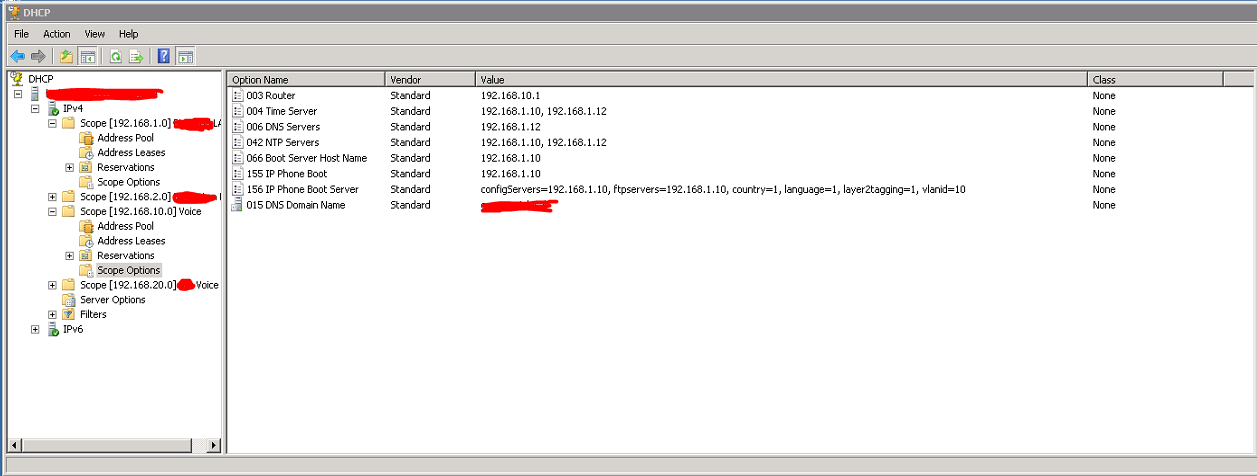
We sometimes have users that work from home that run voice across their VPN back to the office. So here is what the DHCP configuration looks like on a Cisco router. Here we do not have separate networks for data and voice so it is just a single DHCP scope.
ip dhcp pool LAN
import all
network 192.168.9.0 255.255.255.0
default-router 192.168.9.1
domain-name ABC.local
option 4 ip 192.168.1.5
dns-server 192.168.1.12 8.8.8.8
option 156 ascii "ftpservers=192.168.1.10"
option 66 ip 192.168.1.10
lease 0 8
Sometimes you need to add Option 156 to your DHCP server. Here are the steps to do that.
- Open DHCP manager on your DHCP server
- Right-click the DHCP server and select set pre-defined options
- Click add
- Set Name to IP Phone Boot Server
- Set Data Type to String
- Set Code to 156 and add a description if you like
- Navigate to the scope options and add option 156
Thursday, March 14, 2019
ShoreTel: How does ShoreTel decide how to route calls?
By default, ShoreTel will follow the decision tree below, unless custom dial strings are introduced. To make the routing decision, the algorithm poses the following questions. For the number dialed, is there:
- A trunk at the originating site for which the call is local?
- A trunk at the proxy site for which the call is local?
- A trunk at any other site for which the call is local?
- A trunk at the originating site for which the call is considered nearby?
- A trunk at the proxy site for which the call is considered nearby?
- A trunk trunk at any other site for which the call is considered nearby?
- A trunk at the originating site designated for long distance?
- A trunk at a proxy site designated for long distance?
- A trunk at any other site designated for long distance?
- Any remaining trunk available at originating site?
- Any remaining trunk available at the proxy site?
Subscribe to:
Comments (Atom)