Thursday, March 14, 2019

ShoreTel: Manually upgrade IP 400 Series phone Firmware


Just some quick steps on how to manually upgrade the firmware on a ShoreTel IP 400 Series phone.


  1. SSH to the phone
  2. From the CLI enter exit
  3. From the admin$ enter update-stage version of firmware IP address of the HQ server
    1. EX admin$ update-stage 801.5.9100.0 10.10.10.10
  4. After the download completes, from the admin$ enter update-do version of firmware
    1. EX admin$ update-do 801.5.9100.0
  5. The phone will reboot and update the firmware. The D&M will show the new version on the phone when the update completes


ShoreTel: ShoreTel CLI Command Reference Sheet

This is just a quick reference sheet for CLI commands that can be used on the ShoreTel server, DVS server, ShoreTel switches, and ShoreTel phones. A lot of this info can also be found in the Maintenance guide.


Server commands

  1. Showlog.exe – shows logs in real time “best used during quiet time on the system”
  2. Burnflash – forces the switch to accept new firmware
    1. burnflash – s <switch IP address> ex: burnflash –s 10.167.20.21
  3. slogwin - Start the ShoreTel app to pull Server logs

IPBXctl commands: (all must be done from C:\program files\shoreline communications\shoreware server or C:\program files <x86>\shoreline communications\shoreware server depending on the server partition setup)

  1. IPBXctl –telneton <switch IP address> ex: IPBXctl –telneton 10.167.20.21
  2. IPBXctl –reboot <switch IP address> ex: IPBXctl –reboot 10.167.20.21
  3. IPBXctl –flash <switch IP address> ex: IPBXctl –flash 10.167.20.21
  4. IPBXctl –ftp <switch IP address> ex: IPBXctl –ftp 10.167.20.21
  5. IPBXctl –reset <switch IP address> ex: IPBXctl –reset 10.167.20.21
  6. IPBXctl –diag <switch IP address> ex: IPBXctl –diag 10.167.20.21


Switch Environment Settings: Used when the switch enters perpetual boot loop or fails to boot from FTP – basic configuration is possible in this area but should be performed through Application Layer.

Login to application layer of the switch after connecting via putty or telnet

  1. bootChange – will take you to the Vxworks
  2. printenvdiag – displays switch environmental settings
  3. setenv – followed with environment field and variable setenv/bootfile/flash0/vxworks
  4. saveenv – saves any environment changes
  5. reset - command is used to cycle the Switch into a full reboot

Linux DVS Login: root  Password: ShoreTel
Commands:

  1. svccli: Starts the service command line interface. All subcommands are run from the main
    1. Ex: svccli getstatus
  2. getsvcstatus: reports all services status
  3. startsvc <service name> ex: svccli startsvc TMS
  4. stopsvc <service name> ex: svccli stopsvc TMS
  5. CTRL +C exits svccli


Switch Commands


  1. gotoshell - Used to get to the VXworks CLI
  2. cliStart - Used to get to ShoreTel CLI configuration menu
  3. ping "<IP_Address>" 
  4. traceroute "<IP_Address>"
  5. reboot
  6. Record2File2(port,time,<file_name>;0) - Records inbound medaio on the speciied port for the specified time (in seconds) and writes the file to inetpub/ftproot


Switch Diagnostics:

  1. memShow – use prior doing traces to ensure the switch has enough available memory for trace timestamp_st_dpf=1 -- provides time stamps with each debug message
  2. dbg “clear” -- clears all debugs on the switch.
  3. LSP (Location Service Protocol)
    1. lspConList – switch connectivity to other switches
    2. lsp_debug_level- shows messaging that switches are exchanging
    3. lsp_ping test LSP UDP communications between switches – much like a ping including location response

Switch Trunks:

  1. Pri_verbose –used to trace PRI output
    1. Pri_log – D Channel output begins at Level 4.
    2. Pri_trace – PRI D channel trace debug level
  2. Trunk_coo_status – Call Control Object of the trunk
  3. Trunk_debug_level – sets debug level (both SIP and PRI)
  4. Sip_debug_level -
  5. Sip_register_debug_level – SIP level which shows how much SIP code will be collected.
  6. Record2File2- records audio from trunk to trunk

Phones:

  1. printSysInfo - show phone configuration
  2. Ext_cco_status – switches extension Call control object
  3. Ext_conf_status – displays Make me conference ports
  4. Ext_debug_level – logs the Call control object configuration
  5. MGCP
    1. MGCP_msg_debug – logs messages – not commonly used
    2. MGCP_trans_debug -- logs transactions – not commonly used
  6. SIP
    1. Sip_debug_Level – log SIP messaging and ShoreTel Enchanced SIP
    2. sipualList – List all SIP device managed by switch

ShoreTel: Service Appliance Time and IM showing wrong time on message SA100

I ran into a issue where the time on incoming IM messages were off. The phones were showing the correct time, the timestamp on phone calls were correct, the PC was showing the correct time and the time on the server was correct. When you receive IM messages the time stamp for those messages come from the ShoreTel Service Appliance and the Service Appliance gets the IP for the time server from the ShoreWare Director Site settings for the site it belongs to. On working on this issue I found that you can manually update the time server. It is a pretty easy process, you will need to SSH into the Service Appliance and use the command "ntpdate -u <IP OF TIM SERVER>" Below is a copy of the output from when I ran it and the commands and important info has be bolded and underlined. To look at the time you will need to enter the svccli shell and enter the getstatus command. Once you have updated the time, you will probably want to reboot the Service Appliance to make sure that the time sticks after the reboot.


[admin@VSA-100 shorelinedata]$ su
Password: ShoreTel
[root@VSA-100 shorelinedata]#
[root@VSA-100 shorelinedata]# ntpdate -u 192.168.71.56 <IP OF TIME SERVER>
26 Feb 11:15:16 ntpdate[27339]: step time server 192.168.71.56 offset 18134.9159
[root@VSA-100 shorelinedata]# svccli
type help or ? for command list
ucb>getstatus

- General -
Build version is 21.86.1828.0
Core dump is present - newest Sat Feb 24 01:58:08 2018
Server time is Mon Feb 26 11:18:08 2018
Server uptime is 2 days, 1 hours, 26 minutes, 14 seconds
mem usage: total 2048348, used -1020992 (-49.8%)

- Top 3 memory users -
PID    Mem%  Exe
1285   2.8%  /shoretel/bin/IMService
1146   1.9%  /shoretel/bin/stts
1211   1.2%  /shoretel/bin/CMCA

- Processes using more than 40% cpu -
none

- Storage -
Filesystem               1K-blocks        Used   Available Use%  Mounted on
/dev/sda2                 12012968     1554504     9841568  14%  /
devtmpfs                    998116           0      998116   0%  /dev
tmpfs                      1024172           8     1024164   1%  /dev/shm
tmpfs                      1024172       96252      927920  10%  /run
tmpfs                      1024172           0     1024172   0%  /sys/fs/cgroup
/dev/sda1                  2007244      122396     1782036   7%  /boot
/dev/sda5                 77376604     8998720    64471680  13%  /cf
tmpfs                       204836           0      204836   0%  /run/user/500
ucb>q

ShoreTel: How to upgrade and back up the ShoreTel 14.2 and below system

Here is an outline of how I back up and upgrade ShoreTel 14.2 and below systems. This process is pretty easy and if anything goes wrong you have all the back up needed to re-configure a new server if needed. I have used this info a lot and it has worked really well for me. I hope you are able to get some use out of it and it helps you.

Things to consider


  1. This cannot be stressed enough. READ THE BUILD NOTES for the final version you are upgrading to. This information tells you if your 3rd party software is supported and what version. (ex. Exchange, Outlook, Double Take, VMWare, etc..)
  2. Migration to Connect CAN NOT be rolled back to ShoreTel 14, 13, 12, ECT
  3. Please make sure you have someone available at your remote sites during or early the next day after the install. You want to plan for any unforeseen scenario's. Having someone available will allow you to hard reboot any devices in case there are any network issues, or power outages during the install.
  4. If you have additional sites. Be sure that the WAN link is stable and not running any errors. If not, then this could increase the time to perform the upgrade at remote sites significantly.
  5. Use the Compatibility checker to make sure you have no issues with upgrading to the new version.

Back up the current system


  1. Databases .sql files
    1. Navigate to C:\Program Files (x86)\Shoreline Communications\Shoreware Server\MySQL\MySQL Server 5.0\Examples and run the following files
      1. BackupCDR.bat -> Will output an .sql file to the root of C:
      2. BackupConfig.bat -> Will output an .sql file to the root of C:
      3. BackupWebridge.bat -> Will output an .sql file to the root of C:
        1. Only required if there is an SA-100/SA-400 in use.
      4. BackupMonitoring.bat-> Will output an .sql file to the root of C:
        1. Only required for ShoreTel 14.x
      5. Copy the resulting .sql files folder to a safe location (Network Share, Thumb drive, etc...)
  2. Shoreline Data folder
    1. Stop all ST services from script at C:\Program Files (x86)\Shoreline Communications\ShoreWare Server\Script\ hq_shoretel-stop-svcs (make sure to run as administrator)
  3. Copy the VMS, User Data, & Prompts folder from Shoreline Data, to a safe location (Network Share, Thumb drive, etc...)
    1. Start all ST services from script at C:\Program Files (x86)\Shoreline Communications\ShoreWare Server\Script\ hq_shoretel-start-svcs (make sure to run as administrator)
  4. Reboot the ShoreTel server


Upgrade ShoreTel ShoreWare Director


  1. Run the compatability checker to verify that there are no issues
  2. Upgrade the HQ server to the next version
  3. After the upgrade make sure that you can open Director and ensure all your users are there and you are able to run reports.
  4. If this these are successful, then please perform steps 3 through 6 until you are running on the final version you want
  5. Once the HQ server is running the final version, now we can upgrade any DVS's (Distributed Voicemail Servers)
  6. Once the DVS's are good, then please reboot your ShoreTel switches
  7. If you have a 50v or 90v the upgrade will take between 30-45 minutes on a decent network connection
  8. All other switches will take usually 5-10 minutes depending on the network connection
  9. Once all of your switches are rebooted and showing up in Director, then please reboot all the phones 
    1. ** I will sometimes go site by site and upgrade the ShoreTel swithes at a site and then upgrade the phones, and then move to the next site. I always start at the HQ site first though.
  10. Once all of the phones and switches are running on the newest firmware, then we want to address the Communicator client. They can be upgraded by using GP, or the user can click on help and the upgrade in the Communicator Client


Test after Upgrade


  1. Check inbound dialing
  2. Check outbound dialing
  3. Check work groups
  4. Check Route Points
  5. Check Hunt groups
  6. Check Voice mail
  7. Check communicator


Mobility Upgrade


  1. Upload / Install software to the ShoreTel Mobility router
  2. Reboot the ShoreTel Mobility router
  3. Verify everything is working
    1. Inbound calls
    2. Outbound calls
    3. Wifi calls
    4. Cell calls

Wednesday, March 13, 2019

ShoreTel: Star codes use on ShoreTel

Most of the ShoreTel phones have buttons on them or you can program buttons on them to do most of the functions you need. There are some phones like the IP110, IP420, 3rd party conference phones or even analog phones that just do not have a lot of real estate on the phone for buttons or even the ability to program some soft keys so star codes are still needed. Here is a list of some of the star codes that I have come across.

Function
**
Emulate analog extension for FLASH via off-net call
** + Ext + ##
Transfer call
** + Ext + **
Conference a call
**
Hold a call
##
Hang up
00
FLASH hook on Analog phone
*11 + ext
Park call via SIP extension
*12 + ext
UnPark call via SIP extension
*13 + ext
Pickup call
*14
Ring the night bell from a SIP extension
*15 + ext
Intercom via a SIP device
*16 + ext
Barge In
*17 + ext
Silent Monitor
*18 + ext
Set hunt group to busy
*19 + ext
Whisper page
*21
Trace Malicious call
*22 + ext
Silent coach
*23
Move call between Simultaneous ringing devices
*67
Block Caller ID Override
*72
Call Forward Always (may require reg. change??)
*73
Override any Call Forward Always
*82
UnBlock Caller ID Override


Tuesday, March 12, 2019

ShoreTel: How to telnet, SSH and console to ShoreTel switches

There are a lot of things that can be done from a the CLI of a ShoreTel switch. You may not always have the ability to console to the ShoreTel switch so here are the steps to telnet\SSH into ShoreTel SG, ST and virtual switches.


Non-Voicemail SG switches

To telnet:

  1. On the ShoreTel ShoreWare Director server open up a command prompt
  2. Change directories to Program Files\Shoreline Communications\Shoreware Server>
  3. Enter ipbxctl -telneton <IP Address of switch> press enter
  4. You should be prompted for a password. The default password is ShoreTel
  5. Open putty
  6. Select Telnet from the radio button
  7. In the host name field enter in the IP address of the switch
  8. Click open
  9. You should be asked for an user name and password
    1. Login: anonymous
    2. Password: ShoreTel *this is case sensitive so you must use a capital S and a capital T


To Console:

If you need to use a console cable to connect to a ShoreTel SG switch then you will want to use the following:

  1. Connect a Straight-through serial cable (Null modem cable) to the Serial port on the switch
  2. On your terminal emulator (Putty, Hyper-Terminal, SecureCRT, ect):
    1. Select Serial from the radio button and enter you COM port number in the Serial line
    2. Baud rate: 19200
    3. 8 Data bits
    4. No Parity
    5. 1 Stop bit
    6. No Handshake


Voicemail SG, ST and Virtual switches


SG Voicemail Switches

To connect to voicemail SG switches you will need to use SSH to connect to them. You should just need to enter in the IP address in putty and connect to them.


ST and Virtual Switches

1. Install Puttygen on the HQ server
2. Open Puttygen and lick on load existing private key file
3. Navigate to Shorelinedata\keystore\ssh\hq_rsa and click enter (make sure you are showing all files)


    4. Once the key is loaded click on Save private key, you will receive the popup to save with out a passphrase click yes


    5. Name the key and Save it
    6. Use Putty in SSH mode and enter the IP address of the switch

    7. In the left column click on the SSH tab

    8. This will show the drop down options, click on AUTH, then click on the browse button

    9. When you click on the browse button this should take you to the correct folder and select the name you gave the key. Click on the key, it will show in the line then click open.

    10. Right ckick the key and then click Open 

    11. This will start the SSH session to the switch

    12. The login is admin and the password is ShoreTel *this is case sensitive so you must use a capital S and a capital T


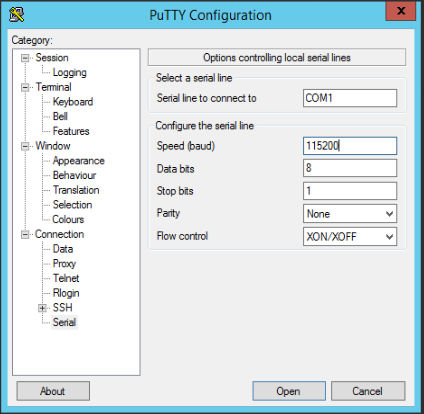
    To Console:


    If you need to use a console cable to connect to a ShoreTel SG switch then you will want to use the following:


    1. Connect a Straight-through serial cable (Null modem cable) to the Serial port on the switch
    2. On your terminal emulator (Putty, Hyper-Terminal, SecureCRT, ect):
      1. Select Serial from the radio button and enter you COM port number in the Serial line
      2. Baud rate: 115,200
      3. 8 Data bits
      4. No Parity
      5. 1 Stop bit
      6. No Handshake


    ShoreTel: Test connectivity between ShoreTel voice switches LSP Ping

    Here is some info I have put together on how to test connectivity between ShoreTel voice switches. ShoreTel switches uses Location Service Protocol (LSP) to exchange all known SIP URLs of the switches and PBX. When a switch first boots up and connects it exchanges all its know SIP URLs (extensions) with the other switches.  LSP is based on UDP and uses port 5440 to communicate on and relies on keep-alive pings every 30 seconds to detect switches that are offline or unreachable. You can do a LSP ping test between switches to test connectivity. I have used this many times to help determine if the issue is a network issue or a ShoreTel issue. When you run this you should be connected to both ShoreTel switches you are testing between.

    To access the ShoreTel switches you will need to open a telnet/SSH connection to the switch. To do this look at the link below

    Shoretel: How to Telnet SSH and Console to a ShoreTel switch


    Once you have a session to both the ShoreTel switch you can enter the VxWorks shell by typing in gotoshell

    You will need to increase the debug levels on both switches so that you can see the output for the ping command. To do this enter >lsp_debug_level=4

    The command to run a LSP ping looks like this lsp_ping "<IP Address>" The IP address you enter should be the IP address of the ShoreTel switch you would like to test to. In this example lets use 10.10.10.10 for the remote switch and 192.168.10.201 for the HQ switch. So the command on the remote switch would look like this >lsp_ping "192.168.10.201"

    You will send a message from the remote switch
    "lsp_send_message 0x0f06.LSP_PING 192.168.10.202"

    On the remote switch you should see the receiving message
    "recv_message len 1147, code LSP_PING 10.10.10.10"

    HQ sends an acknowledgement to the remote
    "lsp_send_message 0x0f06.LSP_PING_ACK 10.10.10.10"

    The remote receives the acknowledgement from HQ
    "recv_message len 702, code LSP_PING_ACK 192.168.10.202"


    Normally when there is a connectivity issue between the switches you will see the send from the first switch, and the receive and acknowledgement by the second switch but the first switch does not receive the acknowledgement. This would point to a network error.

    Remote switch sending the lsp ping
    lsp_send_message 0x0f06.LSP_PING 192.168.10.202
    lsp_send_message 0x0f06.LSP_PING 192.168.10.202
    lsp_send_message 0x0f06.LSP_PING 192.168.10.202
    lsp_send_message 0x0f06.LSP_PING 192.168.10.202
    lsp_send_message 0x0f06.LSP_PING 192.168.10.202
    lsp_send_message 0x0f06.LSP_PING 192.168.10.202
    lsp_send_message 0x0f06.LSP_PING 192.168.10.202
    lsp_send_message 0x0f06.LSP_PING 192.168.10.202
    lsp_send_message 0x0f06.LSP_PING 192.168.10.202
    lsp_send_message 0x0f06.LSP_PING 192.168.10.202
    lsp_send_message 0x0f06.LSP_PING 192.168.10.202
    lsp_send_message 0x0f06.LSP_PING 
    192.168.10.202
    HQ switch receiving the lsp ping
    recv_message len 1147, code LSP_PING 10.10.10.10
    lsp_send_message 0x0f06.LSP_PING_ACK 10.10.10.10
    recv_message len 1149, code LSP_PING 10.10.10.10
    lsp_send_message 0x0f06.LSP_PING_ACK 10.10.10.10
    recv_message len 1150, code LSP_PING 10.10.10.10
    lsp_send_message 0x0f06.LSP_PING_ACK 10.10.10.10
    recv_message len 1151, code LSP_PING 10.10.10.10
    lsp_send_message 0x0f06.LSP_PING_ACK 10.10.10.10
    recv_message len 1153, code LSP_PING 10.10.10.10
    lsp_send_message 0x0f06.LSP_PING_ACK 10.10.10.10
    recv_message len 1154, code LSP_PING 
    10.10.10.10
    When the ping finishes you will receive a report of the ping.

    1000 missing packets
    0 extraneous packets, with 0 duplicated sequences
    0 out of order packets
    0 bad length packets
    0 bad data packets
    Round Trip Times
    -1 ms min
    0 ms max
    0 ms average

    ShoreTel: IP phone mute codes

    Here is a list of "Mute" codes used on ShoreTel IP phones. These codes perform some common ShoreTel tasks without physically power cycling the phone. When you do this make sure to leave the phone on hook. When you press the "Mute" button followed by the key sequence you should not hear any tones or see any visible changes on the phone until you press the # key. If you do then stop and start over. The default password on ShoreTel phones is 1234


    To Clear cached values
    Mute CLEAR (25327)#

    Most phones are configured using DHCP, which allows the phone to broadcast its DHCP request to look for an available DHCP server. The ShoreTel phones like to use their cached values, so if the phone was previously online and does not receive an IP address in a specific amout of time it will use the IP stored in the cached memory. The Mute CLEAR command will clear out any cached values and reset the phone.

    To Reset a phone
    Mute RESET (73738)#

    This is just a simple reboot of the phone with out needing to unplug the network cable

    To Enter setup
    Mute SETUP (73887)#

    On some small network or even larger ones there is sometimes a need to manually enter values into the phone.  The most common reasons for this is your DHCP server does not allow you to enter in the specific options ShoreTel needs or if you need to configure the phone to connect to a VPN or Edge Gateway.

    View Current configuration settings
    Mute INFO (4636)#

    The INTO command is the most used command as it gives you much info on how the phone is currently configured. It gives you information like IP address, subnet mask, gateway, DNS, VLAN ID, SNTP, ect.

    Ping from the phone
    Mute PING (7464)#

    PING on the phone allows you to test network connectivity from the phone to a ShoreTel switch, the default gateway or other equipment. You can enter the IP address or the FQDN of the device you would like to ping.

    Factory reset a phone
    Mute RRAMOS (772667)#  *this will prompt you to enter 1234 as the password before the reset

    This is used to factory reset the phone. It will remove all configuration data except for the firmware.

    ShoreTel: Change IP address of ShoreWare Director 14.2 and below

    I have had a few customers ask about changing the IP address of the ShoreTel server. This is not something i recommend really at all as there are a lot of hooks inside of ShoreTel with the IP and it could cause a lot of problems with the system if it is not done correctly. I have successfully done this with a few of my customers running ShoreTel 14.2 and below and here are the instructions that i have put together for it. I have not tried this on ShoreTel Connect yet but i believe the process is pretty close and the only thing that is different is you will need to create a new server certificate.


    1. Back up the Server
      1. Databases .sql files
          1. C:\Program Files (x86)\Shoreline Communications\Shoreware Server\MySQL\MySQL Server 5.0\Examples
          2.  BackupCDR.bat -> Will output an .sql file to the root of C:
          3. BackupConfig.bat -> Will output an .sql file to the root of C:
          4.  BackupWebridge.bat -> Will output an .sql file to the root of C:
            1. Only required if there is an SA-100/SA-400 in use
          5. BackupMonitoring.bat-> Will output an .sql file to the root of C:
            1. Only required for ShoreTel 14.x
          6.  Copy the resulting .sql files folder to a safe location (Network Share, Thumb drive, etc...)
        1.  Shoreline Data folder
          1.  Stop all ST services from script at C:\Program Files (x86)\Shoreline Communications\ShoreWare Server\scripts\hq_shoretel-start-svcs
          2.  Copy the VMS, User Data, & Prompts folder from Shoreline Data, to a safe location (Network Share, Thumb drive, etc...)
          3. Start all ST services from script at C:\Program Files (x86)\Shoreline Communications\ShoreWare Server\scripts\hq_shoretel-stop-svcs
        2. Back up the registry
          1. Open the run command box and enter regedit
          2. Go to File and choose Export and save it
          3. Copy the registry export to a safe location (Network Share, Thumb drive, etc...)
        3.  Reboot the server and verify everything is up and running again after the reboot
      2. Change the IP of the server
        1. Change the IP address under Application Server -> HQ/DVS
        2. Change the IP address on the NIC
          1. Control panel -> Network and Sharing Center -> Change adapter settings -> Right click on your network adaptor and select properties -> Select Internet Version 4 Protocol and select properties
        3. Check the Registry and change if needed HKEY_LOCAL_MACHINE->Software->Wow64->Shoreline Teleworkes->Local DB Server + HQ Server IP
        4. Reboot the Server
        5. Change any DNS that is needed to point to the new server IP
        6. Telnet to all the ShoreTel Switches and change the HQ/FTP server IP and then Reboot the switch
        7. Change the DHCP options to point to the new HQ server IP
        8. Reboot the phones
        9. Change the HQ IP address in Communicator